Brighten or Darken Image Online Free Tool

Interactive • Private • No Registration • No AI • No Restrictions

Brighten or Darken Specific Parts of an Image


Brighten or darken images online for free. Adjust brightness or darkness of the whole image or manually darken or brighten parts of the photos with dodge and burn brushes. Vignette effect slider. No AI, no watermark, no limits.


Our Brighten or Darken Image Online Free Tool uses asymptotic light-addition algorithms to ensure highlights never look flat and shadows stay rich and full of color, similar to professional darkroom editing. The tool is useful for correcting uneven lighting, brightening faces, darkening backgrounds, enhancing contrast, and drawing attention to the main subject of a photo.


Vignette Effect


Use our Vignette slider to darken the corners and edges of your photo and make the center stay highlighted. It helps bring focus to faces, objects, or anything important in the middle of the image. Perfect for creating depth in your images directly in your browser.


The Darken (Burn) Brush


Use the darken brush to reduce brightness in selected areas. This tool can deepen shadows or create a subtle vignette effect around the edges of your photo, which pushes the background away and keeps the viewer's focus on the center.


Professional photographers often darken the background around the main subject to increase contrast and visual separation. For example, wildlife photographs of animals such as lions or cheetahs are often taken against beige environments where the subject blends into the background. By darkening the background and highlighting the animal, photographers improve depth, contrast, and visual focus.


The Brighten (Dodge) Brush


Use the brighten brush to highlight specific parts of a subject, such as the bridge of a nose, the tops of cheekbones, or the edges of a product. This technique naturally guides the viewer's attention to the most important parts of the image.


The brighten brush can also be used to lighten faces, objects, or important details that appear too dark, helping restore balance to photos with uneven lighting.
Brighten or Darken Image Online Free Tool Examples, Demos, and Ideas

Brighten or Darken Image Online Free Tool demo showing how to create a white sketch on gray paper.

Make a White Sketch on Gray Paper


After converting your photo to a pencil sketch in our Photo to Sketch Converter Online Free and making a negative image in our Invert Images Online Free Tool, you might want a gray color paper such as Strathmore Toned Gray or Pastelmat gray paper for pastels. Upload your inverted sketch here to our Brighten or Darken Image Online tool, and increase the brightness to turn the black background into gray. Just move the slider until you find the exact shade of gray you want.




Brighten or Darken Image Online Free Tool demo showing how to create a black sketch of pineapple on gray paper.

Make a Black Sketch on Gray Paper


In this screen recording, you can see how to convert a photograph of a pineapple into a pencil sketch using our Photo to Sketch Converter Online Free.


The sketch was then uploaded here to our Brighten or Darken Image Online tool, where the brightness was decreased to turn the white background into gray paper. Simply move the Darkness / Brightness slider toward the left, stop when you get the desired shade of gray, and download the result. We never downscale your images - when you download your work, it will be the exact same size as the original file you uploaded.

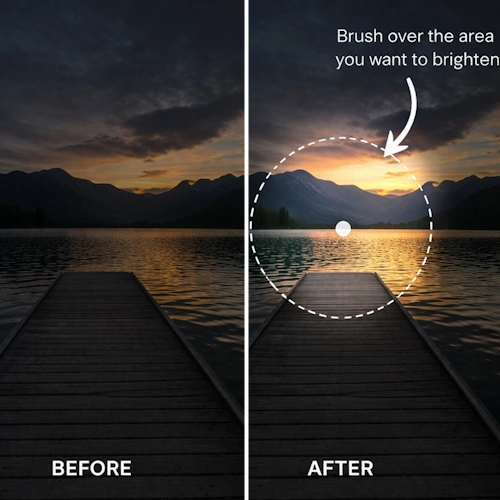
Brighten or Darken Image Online Free Tool demo showing the sunset part was lighten with a Dodge brush.

Brighten Specific Areas with the Brighten Brush


Sometimes you don't want to brighten the whole photo, but only want to make a specific part stand out. Instead of using the Darkness/Brightness slider that affects the entire image, use our Brighten Brush to light up exactly what you want.


In this example, you can see how brushing over the sunset and the water made that area lighter while keeping the rest of the landscape unchanged. You can adjust the brush size with Brighten Brush Size slider to fit small details or large areas. Just brush over the same spot multiple times until it is as light as you want. It’s perfect for highlighting faces in a shadow, cleaning up specific parts of a sketch, or making a sunset pop like in this photo!


Brighten or Darken Image Online Free Tool demo showing the girl in dark evening next to fire on beach being illuminated with a dodge brush.

Illuminate Dark Subjects Without Ruining the Background


In this screen recording, you can see a photo of a girl sitting next to a fire on the beach. It was taken at night, so her face and body were almost invisible while only the fire could be seen. Increasing the brightness for the whole image would make the photo look pale and ruin the dark night atmosphere. Instead, the Brighten brush was used over her face, arms, and clothes a few times until these areas became nicely visible. This way, the background stays dark and moody while the subject is perfectly illuminated.


Sometimes the Brighten brush can create a highlight that is too colorful, depending on the saturation of your photo. If that happens, use our Color Adjustment Image Online Free Tool to reduce the saturation first. Then, simply upload that image here and highlight it again to get the perfect result.

More Free Online Tools from FreeToolio


Background Remover Online Free - Magic Eraser with 1 Click


Link to Free Background Remover Tool.

Remove Background/Magic Eraser

Spot Healing Brush Online Free Tool - Remove unwanted Parts


Link to Spot Healing Brush Online Free Tool.

Healing Brush

Overlay Images Online Free Tool - Add Watermark


Link to Overlay Images Online Free Tool.

Overlay Images / Add Watermark

Color Adjustment Image Online Free Tool


Link to Photo to Sketch Converter Online Free Tool.

Adjust Colors
f ⌁ x r @ βœ‰ p wa tg in ⧉